The portal guide
Your workspace.
A little guidance.
Follow the work, review a decision, or give your agent a new brief. Here is where to find each part.
Jump to a section
A look around your workspace#
Browser tools, agent chat, watching, files, and the instructions you confirm.
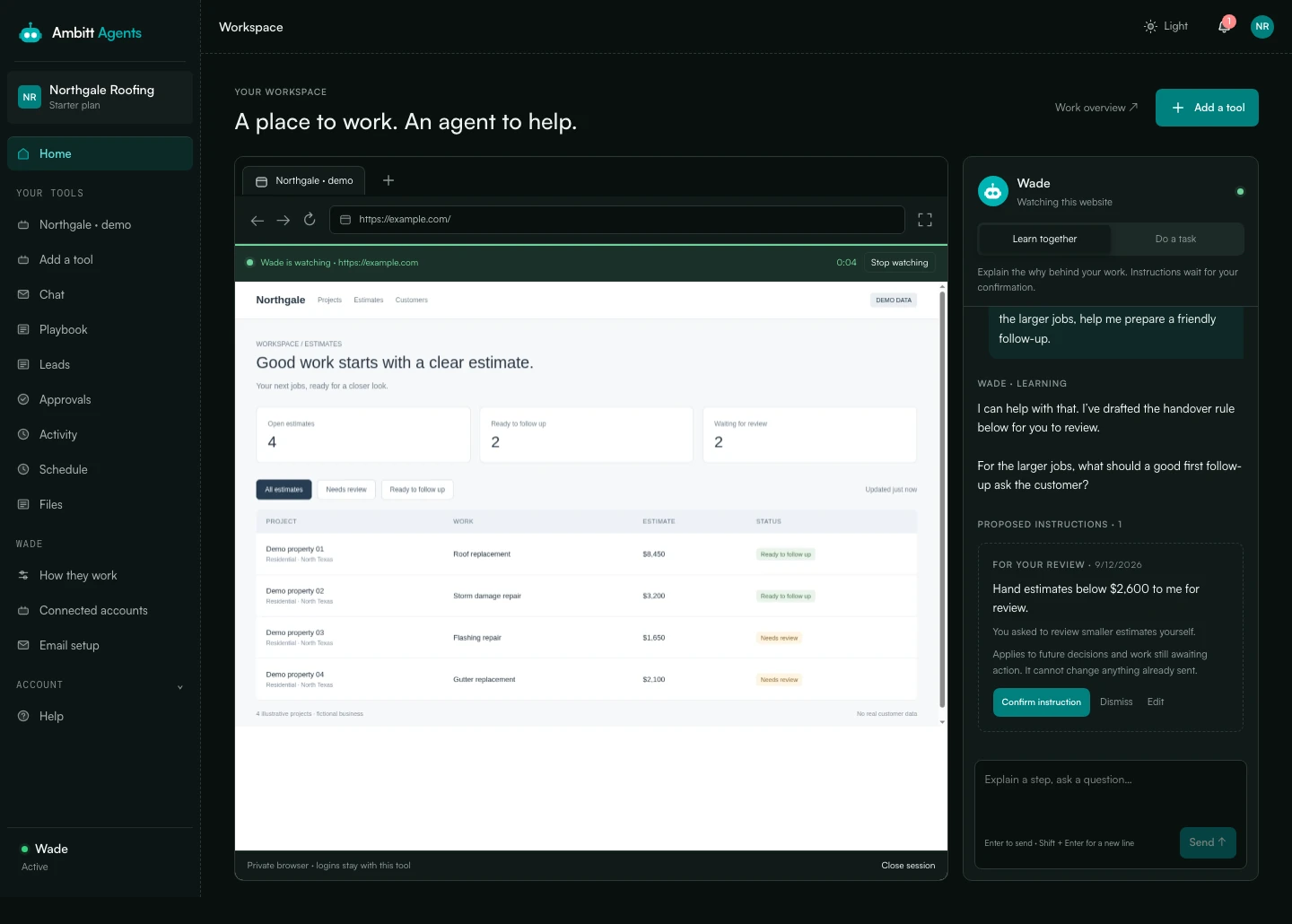
Start at Home
Home is your browser workspace. Choose Integrations to add a website, connect an app, or import a file. Open a web tool from the sidebar; chat with your agent alongside it. Work overview opens the weekly summary of leads, emails and decisions.
Follow the work
Open Leads for the board or table. Approvals collects the decisions waiting for your reply. Activity lets you look through the work log.
Find the controls
Learn together helps your agent understand your process. Do a task asks your active agent to carry out work through its connected tools. Playbook holds instructions you have confirmed. Files holds imports and generated attachments; Schedule controls when your agent works.
Choose your appearance
Use the Light or Dark control in the top bar. Your preference is saved on this browser. On a phone, open the navigation menu to reach the same pages.
Teach a workflow
Open a web tool, finish signing in, then choose Start watching and approve the current website. The green indicator shows when your agent is watching. It saves visible-page learning notes and selected controls, asks questions, and proposes instructions. Confirm an instruction before it becomes part of the Playbook.
Stop watching whenever you like. Hiding the portal tab or changing websites stops watching; a different website needs fresh consent. Password pages, form values and editable content are excluded. Activity shows the watch log.
Watching saves learning notes, not a video. The browser runs in the cloud; some websites need a separate desktop setup. Credit top-ups and self-serve plans remain in development. Screenshots and videos use fictional data.
Signing in#
Your first password, staying signed in, and what to do when you cannot get in.
Your first time
Go to portal.ambitt.agency, put in your email, and choose Email me a link to set my password. We send you a link, you pick a password, and you are in.
The only rule is eight characters or more. A long ordinary phrase beats a short complicated one, so use whatever you will actually remember.
Nobody here can see your password, including us. Sign in is handled by our login provider, so we never receive it and have nothing to store.
Staying signed in
Leave Remember this device ticked and you stay signed in for ninety days. On a shared computer, untick it and we sign you out when the browser closes.
Forgotten it
The same button. Setting a password for the first time and resetting one are the same thing here, so there is nothing different to hunt for.
Asking for work#
How to give your agent a job, send a file, and know when they work.
How to ask
Use Chat in the portal and select Do a task, reply to an email your agent sends, or write to their address directly. It is on the Email setup page in your portal. Write it the way you would write to a colleague: there is no format, and no commands to learn.
Include the goal, the relevant context, and anything they should leave alone. Clear boundaries help your agent make useful decisions.
Sending a file
Import Excel, CSV, PDF, Word, text or JSON files up to 5 MB through Integrations or Files. Select a file when asking your agent about it. For ongoing email reference material, email it with DOCS in the subject line. That marks the attachment as reference material to work from rather than a one off question, and they keep using it.
When they work
On a schedule you set, and whenever you write to them. The schedule and time zone are on the Schedule page in your portal. Update the schedule there whenever you need to.
Approvals#
What your agent stops for, and how to answer in one line.
What they are
Anything your agent has stopped for rather than decided alone. On a supervised setup, that is everything that would leave in your name.
Answering one
Each approval has three replies ready to go: yes, change something first, or leave it. They open an email with the wording already filled in, and you can edit it before sending. A one word answer is fine.
Nothing happens until you answer. There is no timer, and nothing goes ahead by default because you were busy.
Your leads#
What hot, warm and cold mean, how to correct them, and how to take them with you.
Hot, warm and cold
Your agent’s read on how close somebody is, and they have to give a reason for each one rather than just a label. Where they have not judged a lead yet, it sits by how far the outreach has got instead, and says so.
Read the reason alongside the rating. If it needs correcting, email your agent with the lead name and what should change.
Correcting something
Reply to your agent with the lead name, the incorrect detail, and the correction. The lead record helps you find the context to include.
Taking them with you
Export from Settings, whenever you like, without asking us first. Everything your agent finds is yours.
Stopping and starting#
Stop your agent whenever you like, and what it means when we have.
Stopping
Use Pause agent on the How they work page. Check the updated status before leaving. You can resume an agent you paused; an operator or safety hold needs our team to review it.
When we have stopped them
Occasionally we pause an agent ourselves, or an automatic safety limit does. You will see that on the same page. It is ours to lift rather than yours, so there is no button sitting there that would fail if you pressed it. Write to us and we will explain and sort it.
Login codes by text#
Why we ask for a mobile number, and the promises attached to it.
Why we ask for a mobile number
When your agent signs in to a site on your behalf and it sends a one time verification code, they need it within about a minute or the login expires. Email is usually too slow, so we text you and you text the code back.
That number is used for login codes and nothing else. We never send marketing to it, and we never share or sell it.
Reply STOP to any message and we stop immediately, and your agent goes back to asking by email. You can also remove the number in the portal. Message frequency varies, and message and data rates may apply.
Where the detail is
Our SMS opt-in page shows the exact consent screen and wording, and the privacy policy covers the rest.
Tools and passwords#
The accounts your agent uses, and where the passwords live.
What the Tools page shows
Choose Integrations to search the app catalogue and complete the provider’s connection flow. Connected accounts shows the accounts your agent uses on your behalf and which ones still need you. Anything marked as needing setup is a tool they cannot use yet.
Where passwords are kept
Credentials are encrypted at rest. Use the connection flow provided for each tool, and avoid sending passwords in ordinary email or support messages.
Billing and cancelling#
Invoices, what counts against your plan, and how to leave.
Invoices and cards
Under Billing in your portal. Your card and your receipts are held by Stripe rather than by us, so we never see or store a card number.
What counts against your plan
Your current Billing page shows the allowance and extra interaction rate for your account. Setup and onboarding messages do not count toward the monthly allowance. The upcoming credit plans shown on the pricing page have not replaced existing account billing. Watching time is shown for your records; no separate watching charge is enabled.
Cancelling
Tell us and we will do it and confirm. It is a message to a person, not a hidden setting, and there is no retention call.
Getting a person#
The address that reaches a human, and what to put in it.
Write to us
support@ambitt.agency reaches a human. Say what you were trying to do and what happened instead. That is enough to start.
For account or billing help, use the support address. For a work request or a correction to a brief, reply to your agent.